
Build QORM apps with your AI assistant
QORM is agent-native: point your AI coding assistant (Claude Code, Claude Desktop, Cursor, Windsurf, …) at it and have the AI scaffold, edit, run, and verify QORM apps — then collaborate with you on a live app in real time. This is the human's side of the workflow.
See it first
The 60-second version: scripts/demo.sh starts a shared session and plays a scripted set of AI edits — open the printed URL, hit record, and watch the app change live with an "AI edited" toast:
./scripts/demo.sh # examples/counter
./scripts/demo.sh examples/dashboard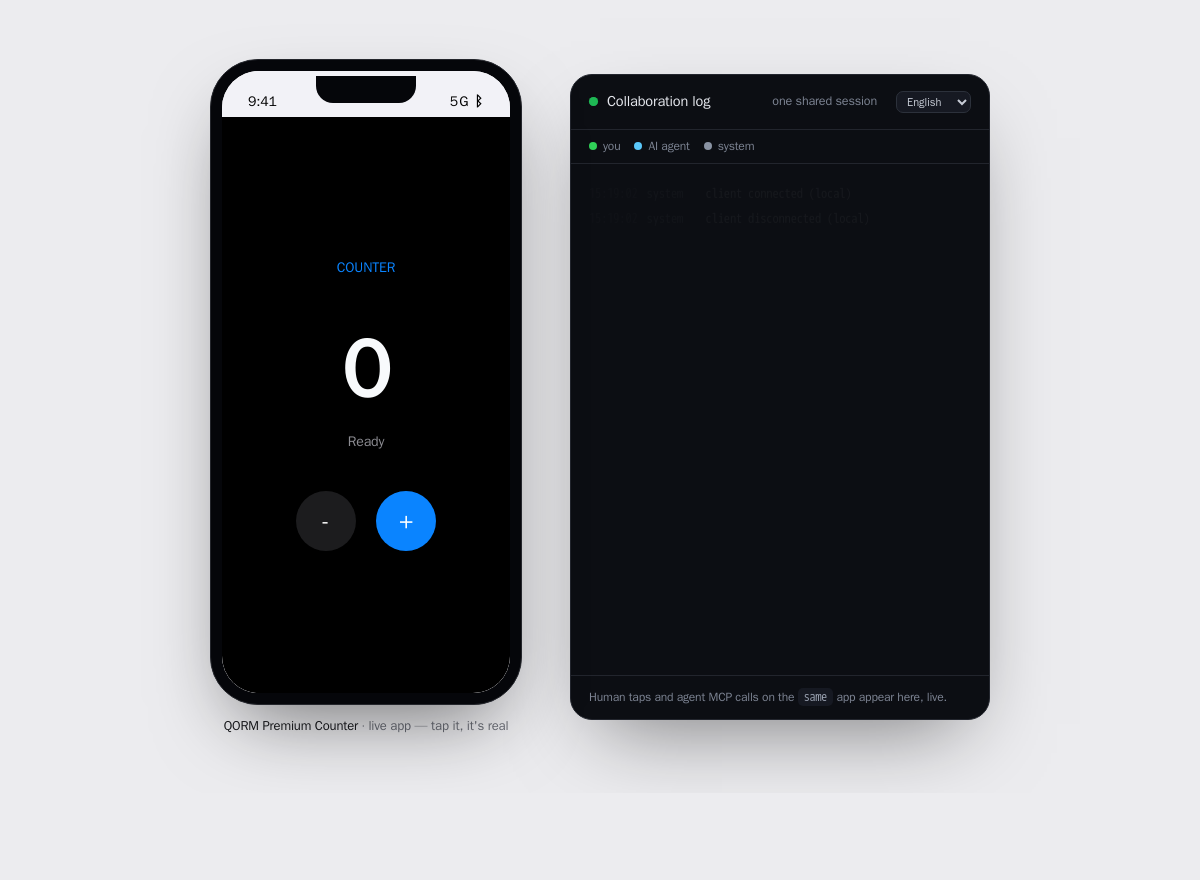 Run a shared session and the AI's edits appear live in your browser, while its MCP calls show up in the log on the right.
Quickstart (Send 2 Sequential Prompts)
No complex manual setup needed. Simply send these two prompts in sequence to your AI assistant (ChatGPT, Claude Code, Cursor, Windsurf, Antigravity, DeepSeek, Kimi, etc.):
Prompt 1 (Load Framework & Skills):
Load QORM framework MCP configuration and Skill library (https://github.com/qorm/platform), set up environment, keep DevTool active.

Prompt 2 (Create & Build App):
Use QORM to create a new app in ./myapp, launch the native window, then build the app for: <your app idea, e.g. a habit tracker with streak days>.
qorm run ./myapp auto-scaffolds non-existent directories, starts the live HTTP server and MCP endpoint at /mcp, and opens your platform's native standalone application window automatically. Use --web if you specifically want a web browser tab instead.
How live collaboration works
- You click in the browser: the AI sees your actions via
qorm_activity. - The AI edits live: files hot-reload or mutate over MCP, appearing instantly in your browser with an "AI edited" toast.
- Self-verification: the AI verifies layout and state using
qorm check/qorm measure.
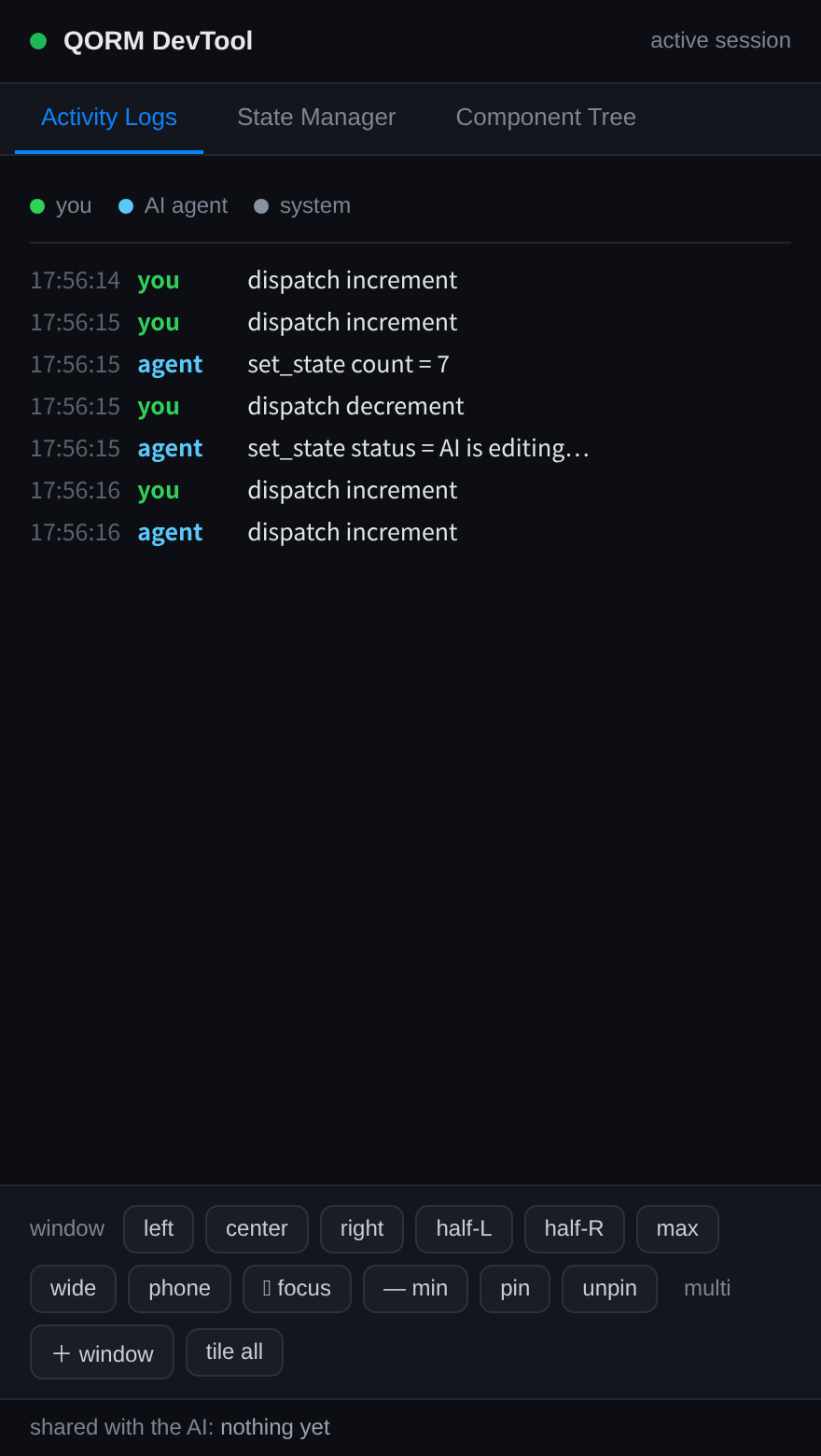 The DevTool makes the human-AI loop visible: who did what, in order, and what is shared with the AI.
See Human-AI collaboration for the full loop.
Design tokens (keep the AI on-palette)
You can declare a design-token system in qorm.json so the AI's style edits stay inside your design system instead of drifting to arbitrary colors. Add an optional designTokens map — each entry is a named, typed value:
"designTokens": {
  "color.primary": { "type": "color", "value": "#0a84ff", "enforce": true },
  "color.bg":      { "type": "color", "value": "#f2f2f7", "enforce": true },
  "spacing.md":    { "type": "number", "value": 16,        "enforce": false }
}type—color,number, … (values are stored as strings;16→"16").enforce— the switch between a hard constraint and a suggestion.
How tokens reach the UI. At render time every token becomes a stage-scoped CSS variable: color.primary → --qorm-token-color-primary (dots become dashes). Scenes style against them with var(...), exactly like the built-in theme variables (var(--accent)):
{ "type": "card", "style": { "background": "var(--qorm-token-color-primary)" } }So the palette you declare is both the AI's fence and the app's real styling channel — change one token and every reference follows.
How it constrains the agent. When you mark a color token enforce: true, qorm_apply_patch (and its side-effect-free qorm_preview_patch) will reject any setProp style op that sets a color style — color, background, backgroundColor, borderColor — to a value that isn't one of your enforced color tokens. The rejection is a clear error that lists the allowed values, e.g.:
design token violation: color "#ff0000" is not an allowed token (allowed: #0a84ff, #f2f2f7)Comparison is normalized for hex case and the leading #, so #0A84FF, 0a84ff and #0a84ff all match the same token.
enforce: falsetokens are advisory — surfaced to the agent but never
blocking.
- An app that declares no
designTokens(or no enforced color tokens)
behaves exactly as before — nothing is constrained.
The agent discovers your tokens through qorm_inspect, which now returns a designTokens field, so it knows which values it's allowed to use before it edits. See the gallery example for a working declaration.
Prompts that work well
- "Add a dark-theme toggle to the settings scene and verify the layout."
- "This button overflows on mobile — measure it and fix the width."
- "Turn the task row into a reusable component."
- "Package this as an installable web app."
The AI has the whole surface at hand: the widget catalog, the capabilities, and the MCP tools.